
Part 2 · Sunday evening to Tuesday
A list thatunderstands itself.
The recipes are picked. Now everything has to go on the list, without doubles and without writing down what's already there. Here's what happens between Sunday evening and Tuesday afternoon.
Start at Sunday 20:10Chapter 1 ·
From recipe to list
You don't copy anything. A recipe or a whole week goes on the list in a few taps.
-
On the list
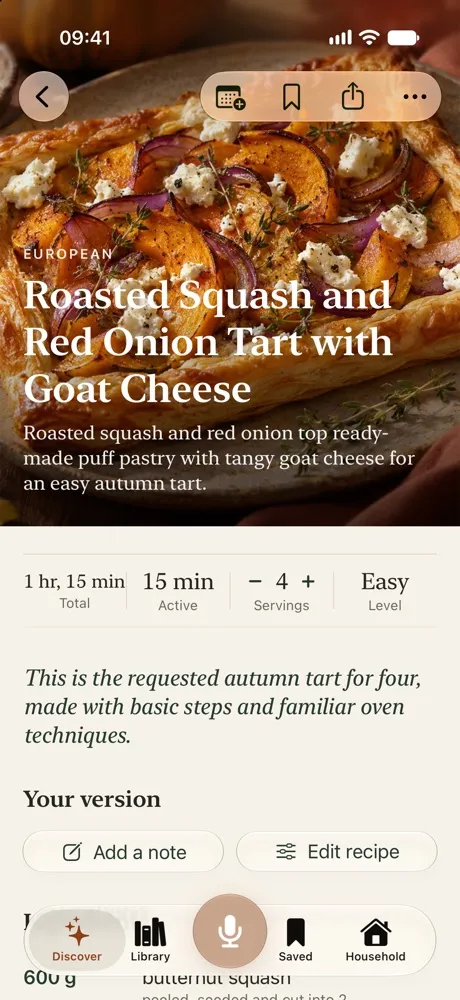
Every recipe has a button. One tap and Umeli asks what you need, instead of adding everything blindly.
-
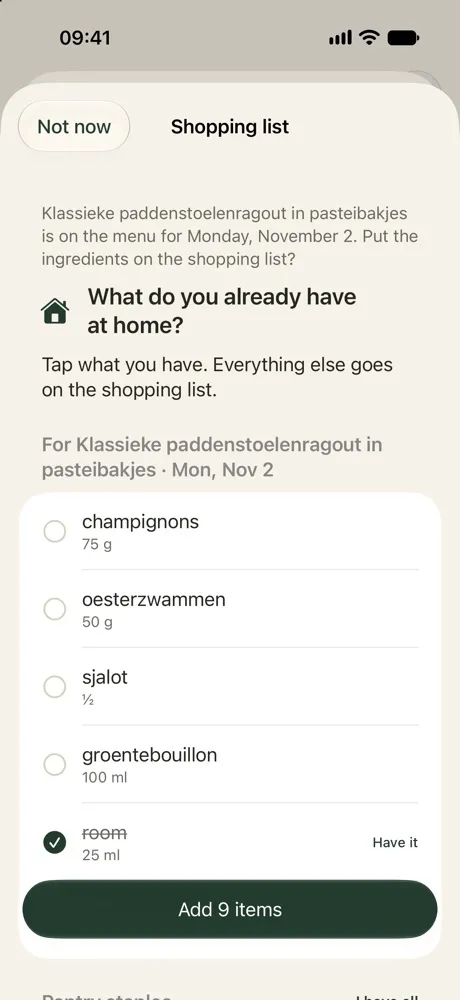
What do you already have?
Tick what's there and the rest goes on the list. Staples are listed apart and optional ingredients start unticked. What you confirmed with the fridge scan is already ticked.
-
The whole week at once
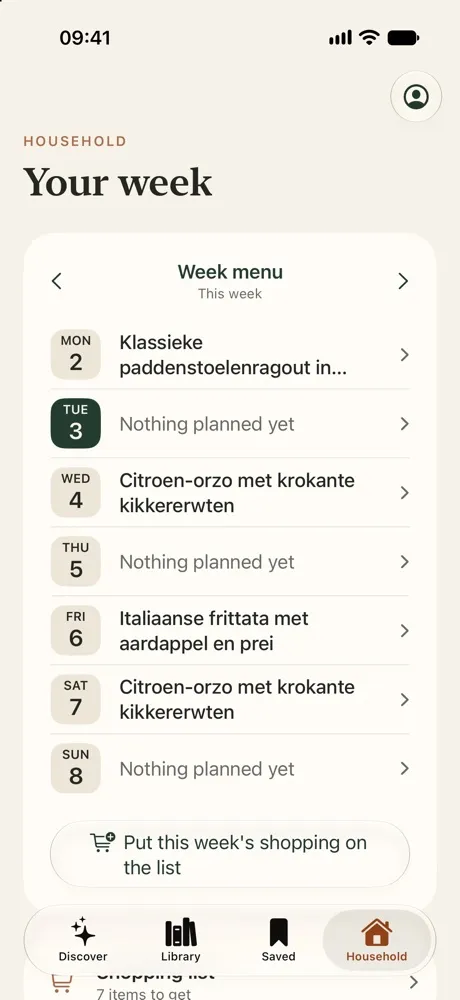
Put a dish on a day and it comes along. Or choose to put this week on the list: scaled to who's eating, from today on and without doubles.
-
Plans change
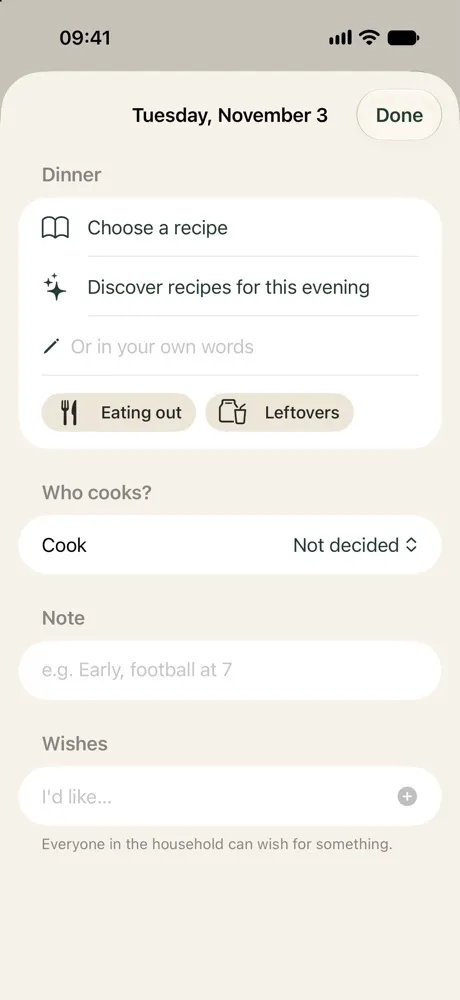
Move a dish to another day and the shopping moves with it. Take it off and Umeli asks if the ingredients can go too.
Chapter 2 ·
What else comes up
Monday morning, the milk's nearly out and Mila wants yoghurt. Adding something takes seconds.
-
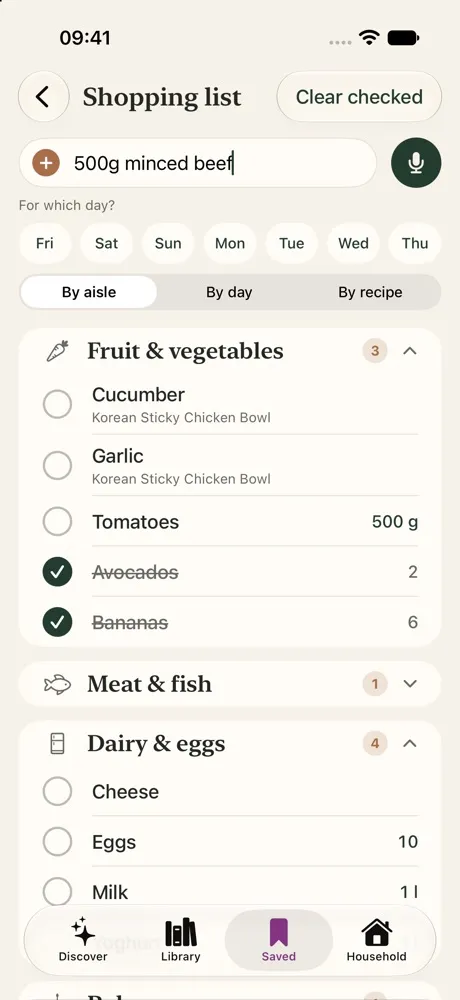
Type the way you talk
"500 gr mince" becomes 500 g of mince, in the right group. "2 cartons of milk and some tomatoes" or a whole pasted list works too. It all happens on your iPhone, with 4,839 products.
-
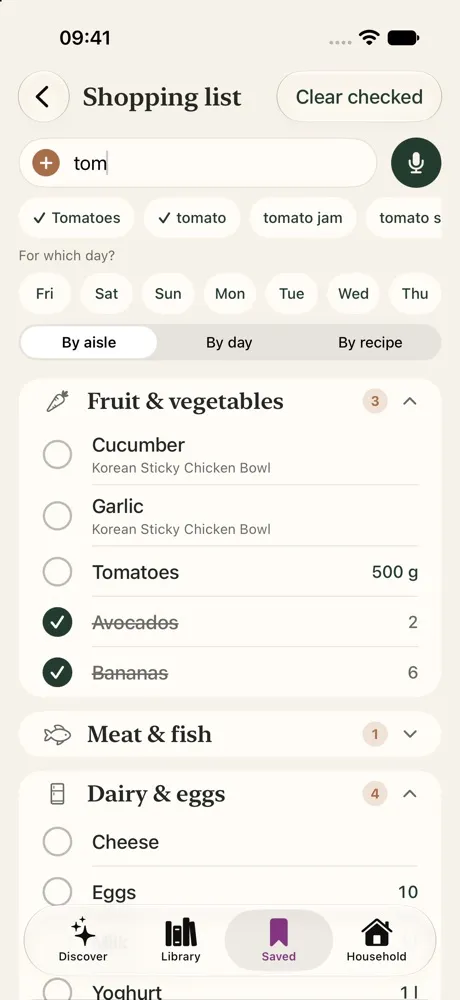
Suggestions as you type
After two letters you see what your household bought before, what's on the list and what's in the catalogue. A tick means it's already on there.
-
For which day?
While you type, pick the day you need it with one tap. No need to: Return adds it without a day.
-
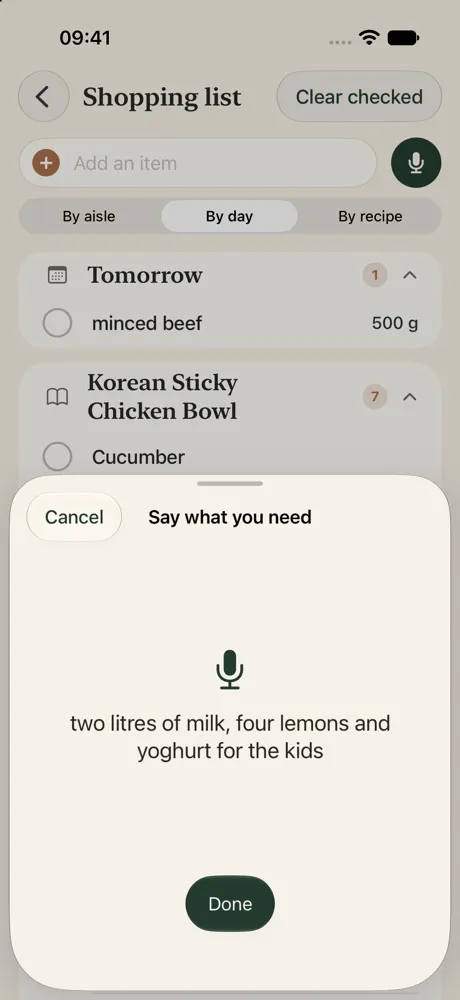
Or just say it
Hands full? Tap the microphone next to the field and say what you need, as much as you like in one sentence.
-
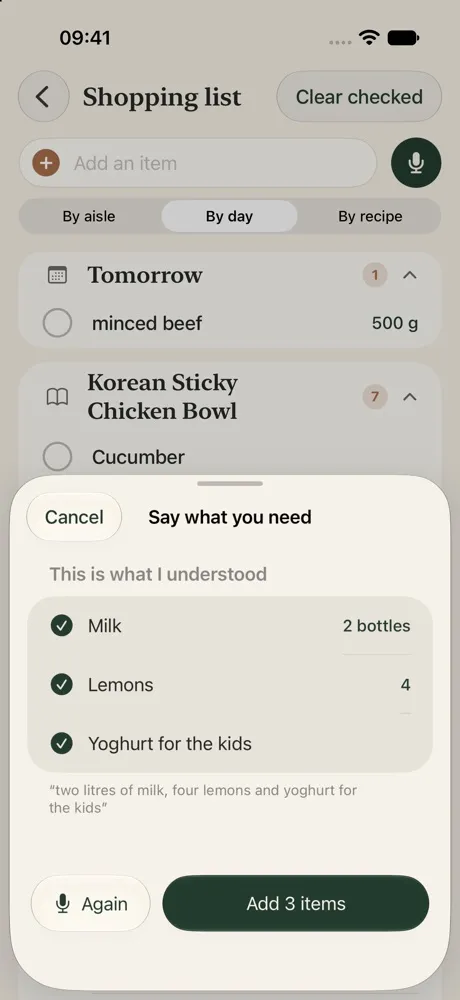
This is what I understood
Nothing goes on the list unasked. You first see what Umeli understood and can change it. "For the kids" becomes a note, and "for Saturday" the day.
Chapter 3 ·
One list, three ways to look
The same list, just the way you need it. Fold any group away, with a count beside it.
-
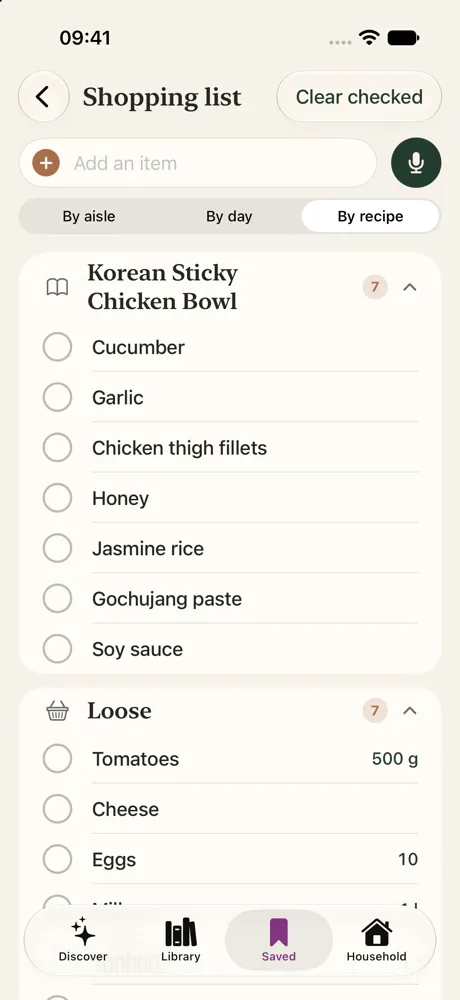
By recipe
See exactly what belongs to which dish, with everything loose below it.
-
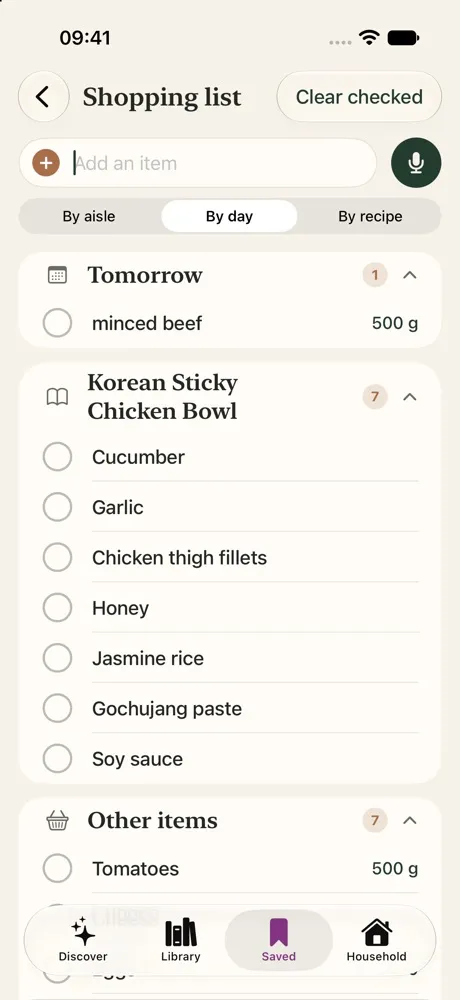
By day
Tomorrow first. Handy when you're not getting everything at once.
-
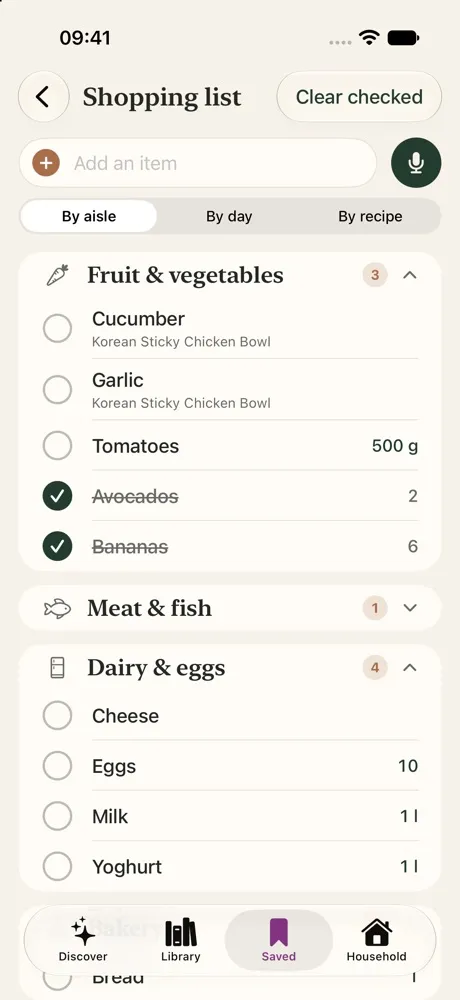
By aisle
19 groups, from vegetables to frozen. Each item shows which dish it's for.
-
Swipe, and back if it went wrong
Swipe right to check off, left to remove. Wrong one? You have six seconds to undo, even after clearing the list. Press and hold to add a note, like which brand.
Chapter 4 ·
One list together
Everyone in your household works on the same list, on their own phone.
-
Sam adds one more thing
What one adds, the other sees right away, with the name beside it. Notifications are bundled, so your phone doesn't keep buzzing. You choose which ones you want.
Try it yourself
Type the way you talk.
Pick a line and see what Umeli does with it. Your iPhone works out the amount, product and aisle by itself.
500 gr mince
- Mince500 gMeat & fish
- Milk2 cartonsDairy & eggs
- TomatoesFruit & vegetables
- Lemons4Fruit & vegetables
And there's more
Doubles add up
If milk is already on there, you don't get a second line. Checked items simply come back.
Siri
Add something to your Umeli list without opening the app.
Your own order per store
Drag the groups into your supermarket's order. In the store, your list follows that route.
Tidying up
Clear what's checked, or empty the whole list. Umeli asks first, because it counts for your whole household.
On to part 3
The list is ready. Off to the store.
Tuesday 17:42: you pull into the car park.
To the storeComing soon to theApp Store